How do I change my profile picture?
You can upload and update your profile picture via the Yay.com Dashboard or directly from your Yay.com app on your chosen device.
Using the Yay.com Dashboard
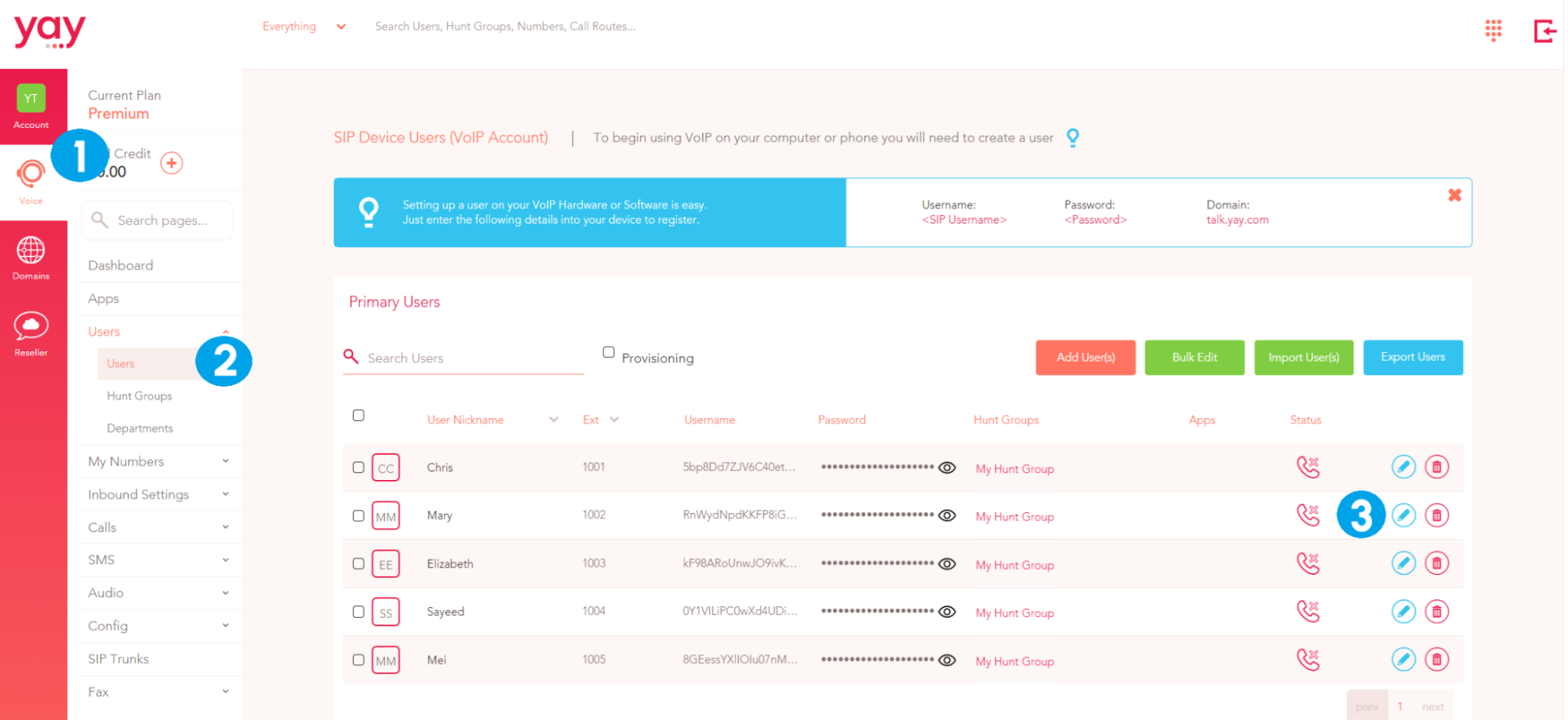
1. Click on the Voice option on the far left of the Administration Dashboard
2. Select Users form the main menu
3. Click the blue pencil Edit icon next to the User that you would like to upload a profile picture for
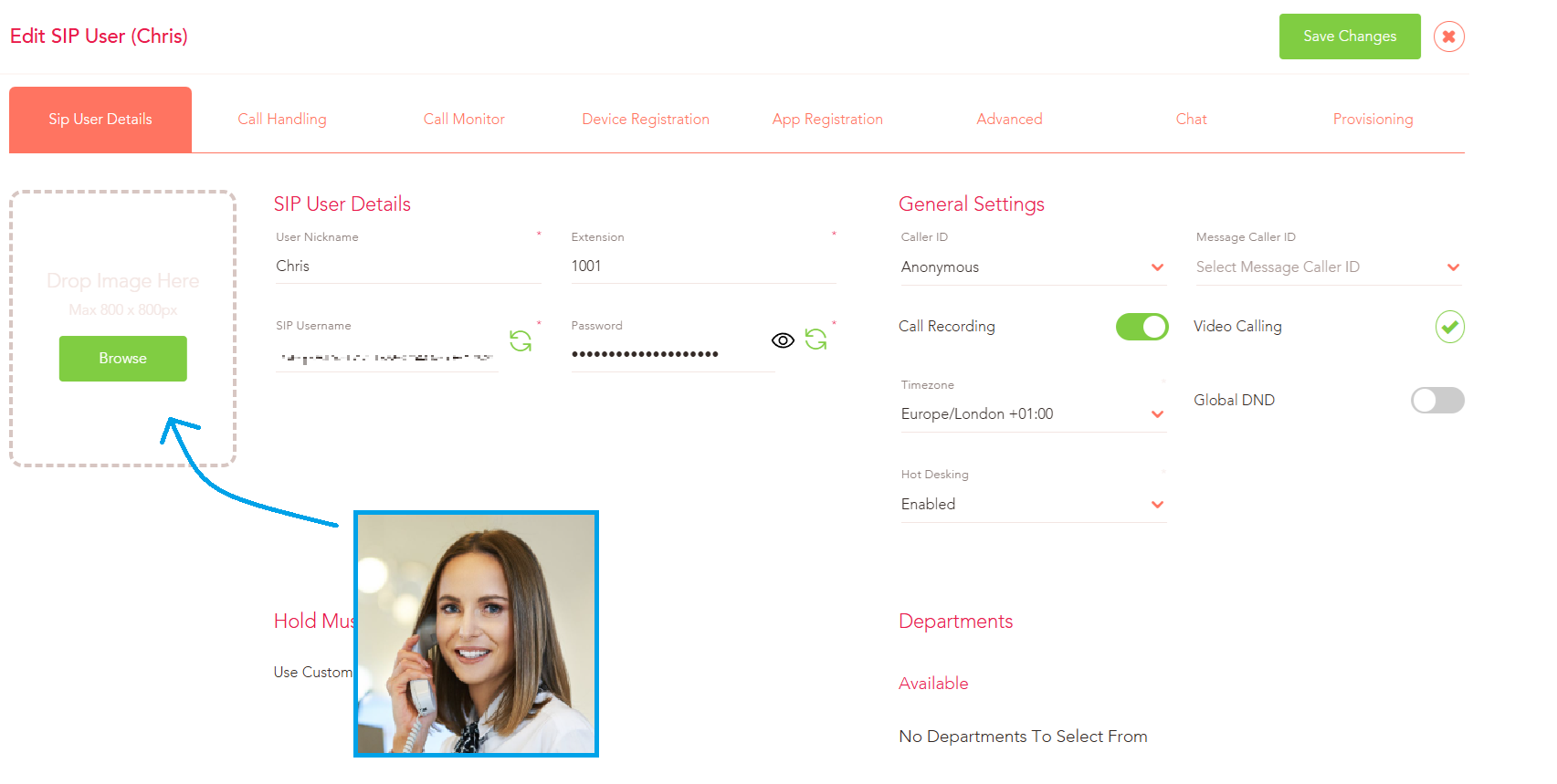
Click the Browse button or drag-and-drop an image into the box provided (the max image size is 800 x 800px).
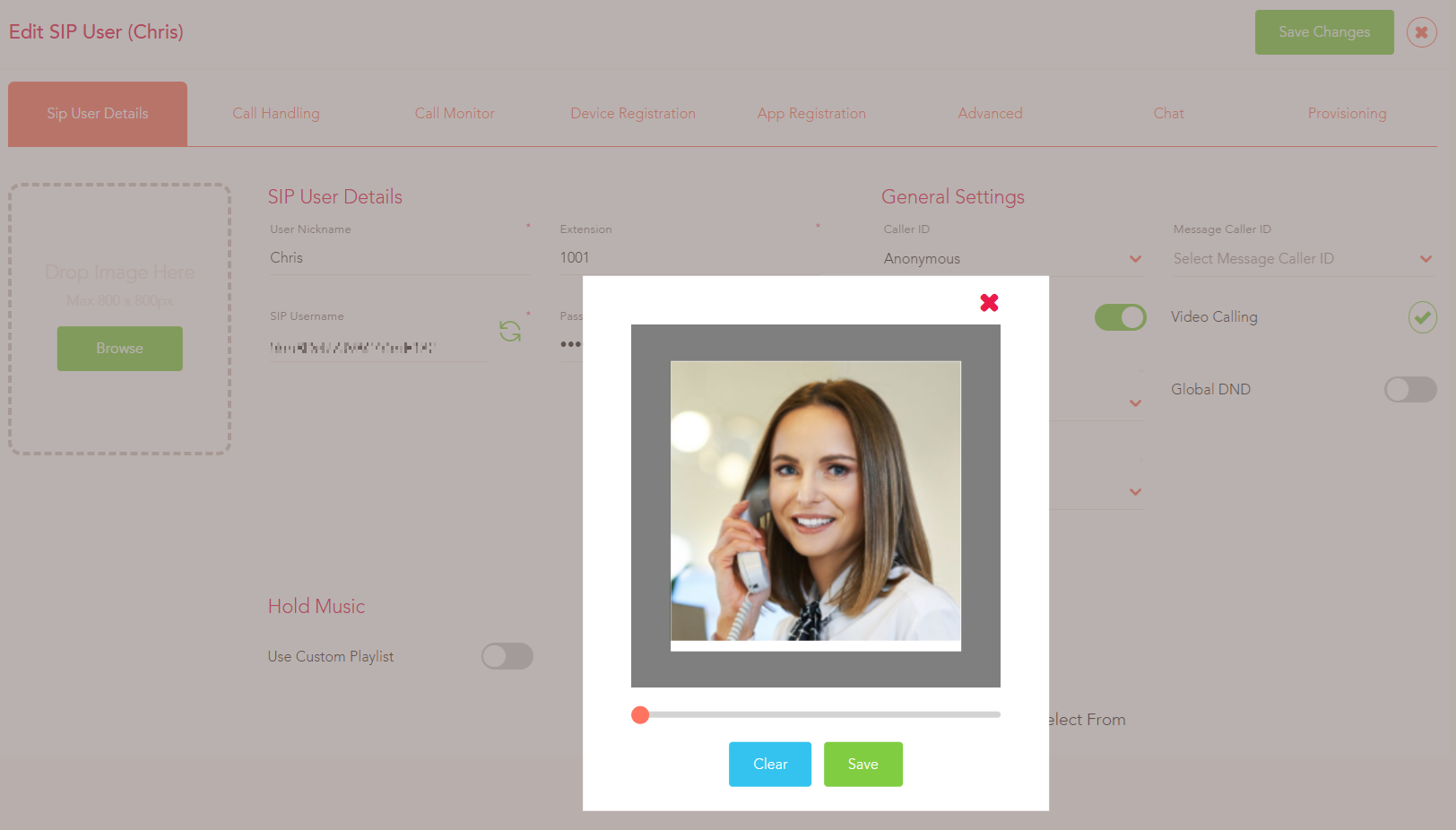
You can adjust the picture size and zoom by using the slider directly underneath the chosen image. Click Save when you are happy with how the image looks.
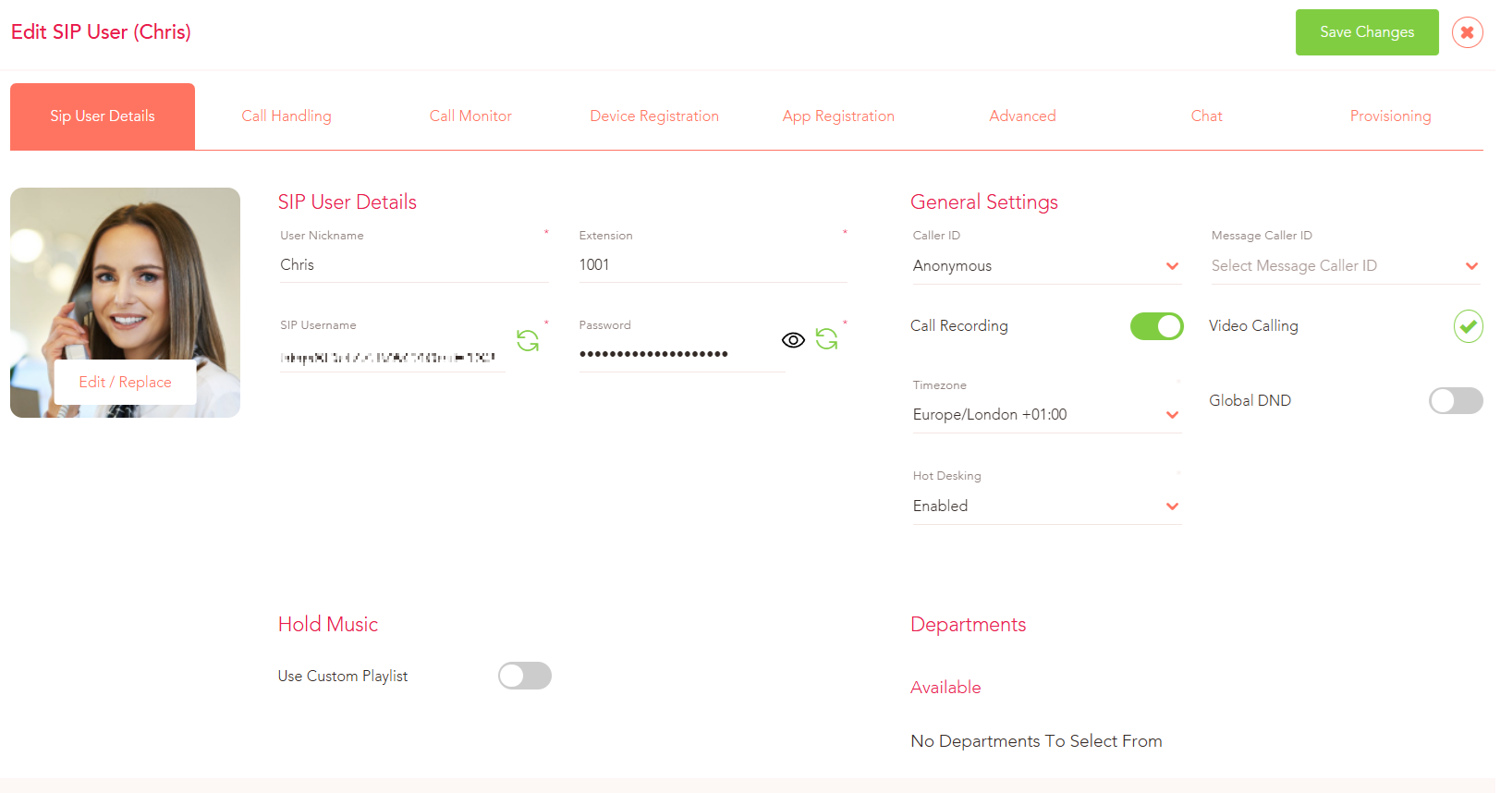
The profile picture is now live and you can update it at any time by going to the User and clicking on the image.
Using the Yay.com Desktop App
Open up your Yay.com desktop or login to Yay.com via your browser at yay.app :
1. Go to the top right corner of the app (your initials)

2. Select Profile

3. Click on the Image button

Click the Upload button to choose an image from your device or drag and drop an image into the box provided.
Using your Mobile Device
Open the Yay.com app on your mobile device:
1. From the home screen, press Settings
2. Press your name or initials at the top of the screen

3. Select Add Photo

4. You can choose to Take a new photo so that you can use the camera on your device to capture a new image or press use an existing photo which will allow you to select an image that you have already saved on your device.
